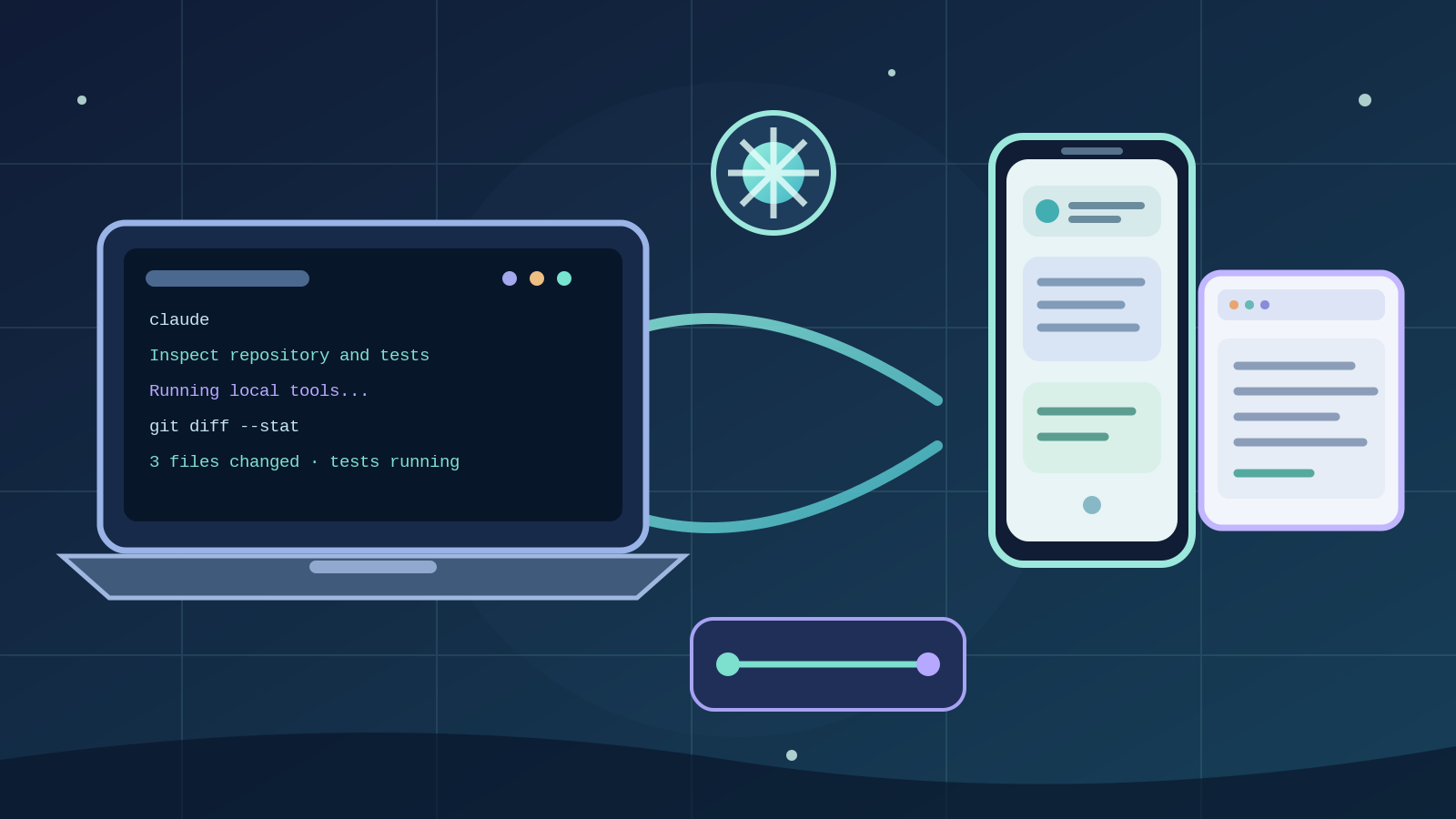
Claude Code Remote Control is designed for a familiar problem: an AI coding task is running on your workstation, but you need to step away. Instead of copying the task into a second chat or moving the repository to another machine, you can connect to the existing local session from claude.ai/code or the Claude mobile app.
The important distinction is where the work executes. Remote Control keeps the Claude Code process, project files, local tools and MCP servers on your computer. Your phone or browser becomes another interface for the same session—not a separate cloud development machine.
What Claude Code Remote Control does
Remote Control links a local Claude Code session to the web or mobile interface. You can read the conversation, send follow-up instructions, respond to questions and monitor work while away from your keyboard. The session can continue using the filesystem, tools, project configuration and MCP servers available on the computer running Claude Code.
It is useful for a developer who starts a test run, code review or small implementation at a desk and wants to keep steering it from another room or device. It is not a way to turn off the computer and leave a local process running indefinitely.
Who benefits most?
- Solo developers: check a long-running build, test or refactor without staying at the desk.
- Web developers: inspect a local project, ask for a focused fix and review the resulting diff from a phone.
- Technical leads: stay connected to an in-progress debugging session while moving between meetings.
- Small teams: use existing local MCP servers and development tools without creating a separate cloud environment for every task.
Requirements and availability
Anthropic documents Remote Control for Claude Pro, Max, Ultra, Team and Enterprise subscriptions. It requires a Claude account sign-in through claude.ai; API-key authentication is not supported for this feature. The Claude Code documentation also lists several organization and endpoint restrictions.
- Install Claude Code and sign in with an eligible claude.ai account using
/login. - Keep the computer that runs Claude Code awake, connected to the internet and running the local process.
- For Team and Enterprise, an Owner must enable Remote Control in Claude Code admin settings. Custom roles may also need both cloud-session and remote-control permissions.
- Remote Control is unavailable when Claude Code is routed through Amazon Bedrock, Google Cloud's Agent Platform, Microsoft Foundry, a custom
ANTHROPIC_BASE_URL, or an enterprise Claude apps gateway. - Organizations using Zero Data Retention or the HIPAA configuration cannot enable Remote Control.
Claude is listed as available in Pakistan, but subscription entitlements, organization policy and feature availability still determine whether an individual account can use Remote Control. See Anthropic's supported locations list and the live Remote Control requirements before rolling it out to a team.
How to start a Remote Control session
The following walkthrough uses an existing local project and the interactive CLI. Menu labels can change as Claude Code updates, so check /help if a command is not available in your installed version.
- Open the project on your computer.
Start a terminal, change to the repository you want to work on and launch Claude Code:
cd ~/projects/my-app claude - Sign in with your Claude subscription.
If the CLI is not already authenticated, run
/loginand complete the claude.ai sign-in flow. Do not rely on an API key: Remote Control requires subscription authentication. - Enable Remote Control for this session.
At the Claude Code prompt, enter:
/remote-controlReview the confirmation dialog and choose the option to enable Remote Control. You can add a session name to make it easier to identify later:
/remote-control Storefront maintenance - Connect from another device.
Use the session URL displayed in the terminal to open claude.ai/code in a browser. You can also scan the QR code from the terminal with the Claude mobile app. Sign in using the same account and organization.
- Continue the task and inspect the changes.
Send a narrow follow-up instruction, such as asking Claude to explain a failing test or review a specific file. If the repository is under Git, use the diff view to inspect changed files. Keep important approvals and production actions under human control.
- Disconnect when finished.
Run
/remote-controlagain to disconnect the remote interface while keeping the local session, or stop the local process when the work is complete.
Alternative: start a remote-control server
If you want a terminal process that waits for remote connections and can serve sessions on demand, use server mode from the project directory:
claude remote-control --name "Website maintenance"The first run asks for one-time confirmation. The terminal then displays a URL and a QR-code option. Press the spacebar in the server terminal to show or hide the QR code. Server mode is different from claude --remote-control, which starts a normal interactive session that you can use locally and remotely at the same time.
For a Git repository, server mode can also use isolated worktrees for on-demand sessions:
claude remote-control --spawn worktreeWorktree mode requires a Git repository or a configured WorktreeCreate hook. It is useful when you want separate remote tasks to avoid editing the same working directory.
Practical prompts for remote development
Remote Control is an interface, not a reason to give an agent broader permissions. Use prompts that specify the scope and the evidence you expect back.
Inspect the failing test output and identify the most likely cause. Do not change files yet. Show the relevant file paths and propose the smallest safe fix.
Review the current Git diff for unintended changes. Run the project's existing lint and test commands, summarize failures, and do not deploy or push anything.
Check the Nginx and application logs for the time window I provide. Redact credentials and tokens from your summary. Do not restart services or modify production configuration.
For sensitive work, keep the session read-only until you have inspected the proposed plan. Prefer a disposable branch, a separate Git worktree and least-privilege credentials.
Security and privacy: what stays local, and what does not
Anthropic documents that Remote Control uses outbound HTTPS connections and does not open an inbound port on your computer. The session registers with Anthropic's service and exchanges messages with connected devices over TLS. Local code execution and filesystem access stay on the machine running Claude Code.
There is an important data-handling caveat: while Remote Control is connected, the session transcript—including your messages, Claude's responses and tool activity—is stored on Anthropic's servers so devices can stay synchronized and reconnect after interruptions. Treat the transcript as data sent to the service, and review the applicable data-use terms before using it with confidential material.
- Do not paste passwords, private keys or production tokens into prompts.
- Use least-privilege credentials and restrict the files, APIs and networks available to the local agent.
- Require approval for deployments, database writes, permission changes and external data transfers.
- For organization-managed environments, ask an Owner to review Remote Control and Trusted Devices policy.
Billing and usage limits
Remote Control is an access method for Claude Code, not a separate model. Model usage continues to count under the subscription or billing route used by the local session. Pro and Max plans have session and weekly usage limits; other plan types have their own allocation and billing rules. If you reach a limit, Remote Control does not bypass it.
Because API-key authentication is not supported for Remote Control, a Console API key cannot be used to turn it into an API-billed remote session. Check Anthropic's current Claude Code usage and limits guide for the plan-specific rules that apply to your account.
Limitations to understand
- Your computer must stay available. If it sleeps, loses network access or the Claude Code process stops, the remote session goes offline until it reconnects.
- One remote session per interactive process. Use server mode if you need multiple concurrent sessions from one process.
- Some commands remain local-only. Certain terminal-specific commands and pickers are not available from the mobile or web interface.
- Not every enterprise setup qualifies. Organization policy, custom roles, gateway routing and privacy configurations can block the feature.
- Trusted Devices is a separate beta control. It can require enrolled devices and recent authentication before users can view or steer sessions.
Frequently asked questions
Does Remote Control upload my entire project to a cloud machine?
No. The Claude Code process and filesystem access remain on your computer. However, prompts, responses and tool activity in the connected session are stored on Anthropic's servers for synchronization, so do not treat the session as offline or transcript-free.
Can I use Remote Control with an API key?
No. Anthropic requires an eligible claude.ai subscription login for Remote Control. API-key authentication and several third-party model-hosting routes are not supported.
Can I connect from an iPhone or Android phone?
Yes. Anthropic documents the Claude mobile app for iOS and Android, as well as the browser interface at claude.ai/code.
Will my computer keep working if I close the terminal?
No. The local Claude Code process must keep running. If you are using a remote machine over SSH, Anthropic recommends running the process inside a terminal multiplexer such as tmux or screen so it can survive an SSH disconnect.
Does Remote Control bypass plan usage limits?
No. The local session still uses the applicable Claude Code plan allocation or billing arrangement. Connecting from another device does not create a separate usage allowance.