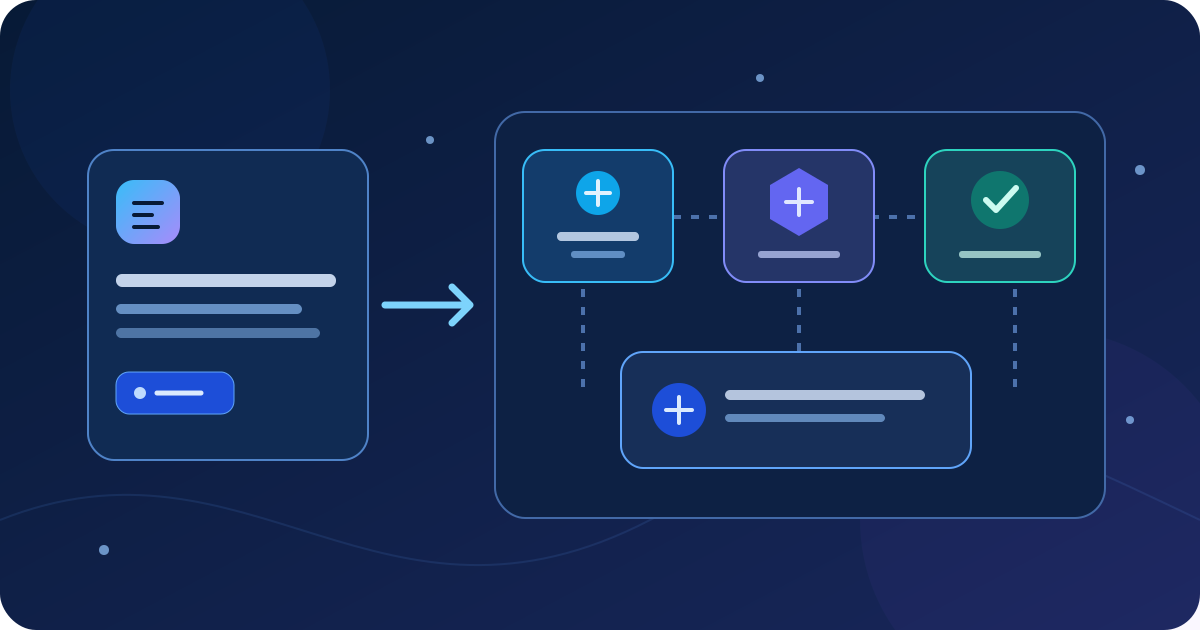
Microsoft Copilot Studio can create an agent flow from a natural-language description. Instead of starting with an empty canvas and manually choosing every trigger and action, you describe the business process, review the plan Copilot proposes, refine it in conversation and let Copilot configure the flow.
This guide covers agent flows in Copilot Studio's standard harness. They are distinct from the separate workflow format and the GitHub Copilot harness experience. The natural-language authoring route is useful for repeatable work that connects business apps: routing a form submission, creating a SharePoint record, notifying a Teams channel or requesting an approval. The generated flow remains editable, so the goal is not to remove process design. It is to make the first version faster to build and easier to discuss with the people who own the process.
Important: Natural-language authoring creates a proposed automation, not a guarantee that every connector, field mapping or business rule is correct. Review permissions, test with safe data and keep a human approval step for consequential actions.
What natural-language agent flow authoring does
In Copilot Studio, an agent flow is an automation with a trigger and one or more actions. A trigger can be a manual run, a schedule or an event from a connected service. Actions can call connectors, apply conditions, process data, use AI capabilities or request human input.
With natural-language authoring, Copilot asks follow-up questions when needed, proposes a flow plan and configures the connections and parameters after you confirm. You can then open the designer to inspect and adjust the generated steps.
Who should use it?
- Operations teams that need to route forms, requests and internal notifications.
- Microsoft 365 administrators and makers who connect Outlook, Teams, SharePoint and other approved services.
- Small business teams that want to prototype a repeatable approval or intake process before investing in custom development.
- Power Platform developers who want a first draft of a flow that they can refine in the visual designer.
It is best suited to structured, repeatable processes. If a process depends on complex legal interpretation, high-risk financial decisions or unusual exceptions, use the generated flow to organize the steps—not to replace the responsible reviewer.
Prerequisites and access
- Access to Microsoft Copilot Studio and a Power Platform environment where you are allowed to create agent flows.
- The relevant connectors, such as Microsoft Forms, SharePoint, Outlook or Teams, must be available and permitted by your organization's data policies.
- An administrator may need to enable external models in the Power Platform admin center for the environment or environment group. Microsoft's flow-authoring documentation says this feature uses Anthropic models and may dynamically select or fall back between supported models.
- Have permission to create connections and access the destination resources. For example, the account used by the flow needs the appropriate permissions on the SharePoint site or Teams channel.
- Prepare a test environment, sample form or non-sensitive records so you can validate the automation without affecting production data.
Availability: preview and tenant considerations
Microsoft's dedicated documentation for creating an agent flow with natural language describes the flow-specific experience without marking that page as a preview. However, access is still dependent on environment policy and the external-model setting. Microsoft also documents a broader Build with natural language experience as a preview; that broader experience should not be confused with the specific agent-flow authoring route in this guide. One naming detail matters: although you enter through the Workflows page, choose Agent flows. Microsoft says natural-language authoring is not currently available for the separate workflow format, which you build in the visual designer.
Microsoft notes that feature rollouts can take several days, so a newly documented control may not appear immediately in every environment. The natural-language capability is optimized for English, with limited support for other languages; parts of the experience may appear in English even when another language is selected.
Step 1: Choose a small process to automate
Start with a process that has a clear beginning, a predictable sequence and an observable result. For example, a vendor onboarding request might begin when someone submits a Microsoft Form, create a record in SharePoint, notify procurement and request approval before the vendor is added to an operational system.
Write down the trigger, the data you need, the conditions that change the route and the person who owns the final decision. Avoid starting with a vague goal such as “automate procurement.”
Step 2: Open the agent flow builder
- Open Microsoft Copilot Studio and select Workflows from the navigation pane.
- On the Workflows page, select the arrow beside New workflow.
- Choose Agent flows. The flow designer opens with an empty canvas and an Add a trigger starting point.
- Select the Copilot button in the designer toolbar to open the natural-language chat panel.
Step 3: Describe the trigger, connectors and outcome
Use Microsoft's recommended pattern: When X happens, do Y. Mention the app, the data to use, the conditions and the desired result. A concrete prompt is easier to translate into a flow than a general request.
For a vendor-intake example, adapt this prompt to your own environment:
When a new response is submitted to the Vendor Onboarding Microsoft Form: 1. Read the company name, contact email, requested service and response ID. 2. Check that the required fields are present. 3. If a required field is missing, post a message in the Procurement Review Teams channel with the response ID. 4. If the required fields are present, create a new item in the Vendor Intake SharePoint list. 5. Send an approval request to the procurement owner. 6. Record the approval outcome and notify the requester. Use the existing approved connections. Do not create a vendor account, make a payment or send an external commitment. Keep a human approval step before any vendor is activated.This example gives Copilot the event, apps, data, conditions and boundaries. Use the actual form, list and channel names from your tenant rather than assuming the generated flow will discover the right resource automatically.
Step 4: Review the proposed flow plan
Submit the prompt and read the plan Copilot returns. Check that the trigger matches the event you intended, the right connector is selected and the sequence of actions makes sense. If a detail is wrong, correct it in the chat before confirming.
For example, if Copilot proposes posting every form response to a public Teams channel, ask it to use a restricted procurement channel instead. If it proposes creating a vendor before approval, change the sequence so the approval happens first.
Step 5: Confirm and save the generated flow
When the plan is accurate, confirm that Copilot should build it. Copilot configures the flow, connections and parameters. Select Save this flow to finalize the generated draft.
After you open the agent flow in the designer, Microsoft's documentation says the Copilot chat panel can no longer make changes to that flow. Use the designer from that point onward to add, remove or adjust actions and conditions.
Step 6: Inspect connections, conditions and permissions
Before testing, review each generated step:
- Confirm the trigger fires only for the intended form, mailbox or event.
- Check that each field maps to the correct column, variable or message property.
- Verify that conditions handle missing values, duplicate submissions and unexpected input.
- Use the least-privilege connection that can complete the task.
- Keep approval gates before actions that create accounts, change records, send external messages or commit money.
Agent flows are designed for consistent, rule-based execution. The AI helps author the flow, but the actions still need to be deterministic, explicit and auditable.
Step 7: Test with sample data
Run the flow in the designer using mock or non-sensitive inputs. Test at least one normal submission, one missing-field case and one case where an approval is rejected. Confirm that each branch produces the expected result and that the flow does not accidentally process the same request twice.
Check the run history and connector outputs rather than relying only on the final Teams message. If an action fails, inspect its input parameters, connection and error details before changing the prompt or adding more steps.
Step 8: Publish only after the flow is healthy
Fix all errors shown in the designer, save the final version and publish it when the test results are satisfactory. Start with a small group or low-risk process, monitor the first live runs and document who owns the flow, its connections and its failure alerts.
Billing and Copilot Studio capacity
Agent-flow usage is measured through Copilot Studio capacity. Microsoft's current documentation says each action an agent flow executes consumes capacity. The billing path depends on how the flow is called and the user's license.
- Testing an agent flow in the flow designer or in an agent's embedded test chat does not consume agent-flow capacity.
- When a standard-harness agent calls a flow from a topic, the run includes a Classic answer plus the flow actions. With generative orchestration, it includes an Autonomous action plus the flow actions.
- Autonomous runs, such as those started by an event trigger or another automation, can consume capacity even when users in the organization have Microsoft 365 Copilot licenses.
- If an environment has no Copilot Credits available, new agent-flow runs can be blocked until capacity is available. Administrators can review usage in the Power Platform admin center and consider pay-as-you-go billing where appropriate.
There is no single fixed cost for every flow: the number of actions and the way the flow is invoked affect consumption. Check your tenant's licensing, available capacity and current billing rates before enabling a high-volume process.
Limitations and safe-use checklist
- Generated plans can be wrong. Verify connector names, resource IDs, field mappings and branch logic in the designer.
- Access is tenant-dependent. External-model policies, connector policies and environment permissions can hide or block the experience. Natural-language authoring is for agent flows, not the separate workflow format.
- Language support is limited. Microsoft says the natural-language authoring experience is optimized for English.
- Testing is not production proof. Use realistic test cases for retries, duplicates, missing data, rejected approvals and connector outages.
- Capacity is finite. Monitor action counts and usage, especially for scheduled or event-triggered runs.
- Human review still matters. Keep approval gates around sensitive data, financial operations, account creation and external commitments.
Practical takeaways
- Choose one process with a clear trigger and a measurable outcome.
- Write the prompt as “When X happens, do Y” and name the apps, fields and conditions.
- Review Copilot's plan before confirming the build.
- Inspect every connector and permission in the visual designer.
- Test normal and exception paths with sample data before publishing.
- Monitor Copilot Studio capacity and assign a human owner to the live flow.
Frequently asked questions
Can Copilot Studio build an entire agent flow from a text prompt?
Yes. The documented flow-specific experience can ask follow-up questions, propose a plan and configure the trigger, connections, actions and parameters after you confirm.
Is natural-language agent flow authoring a preview?
The dedicated Microsoft Learn page for this agent-flow authoring route does not label it as preview. A separate, broader Build with natural language experience is marked preview. Availability for the flow-specific route still depends on tenant policy and external-model access.
Can I keep editing the flow by chatting with Copilot after it is saved?
Microsoft says that once you open the generated flow in the designer, the Copilot chat panel can no longer make changes to that flow. Continue editing in the visual designer.
Does testing consume Copilot Studio capacity?
Microsoft's agent-flow overview says tests in the flow designer and the agent's embedded test chat do not consume agent-flow capacity. Live runs can consume capacity based on the actions and invocation path.
Can I use the feature in a language other than English?
Microsoft says the capability is optimized for English and has limited support for other languages. Some parts of the experience may appear in English.
Sources and official documentation
- Microsoft Learn: Build an agent flow with natural language
- Microsoft Learn: Agent flows overview and capacity usage
- Microsoft Learn: Copilot Studio overview and preview availability
- Microsoft Learn: What's new in Copilot Studio
- Microsoft Learn: Copilot Studio billing and licensing FAQ
- Open Microsoft Copilot Studio