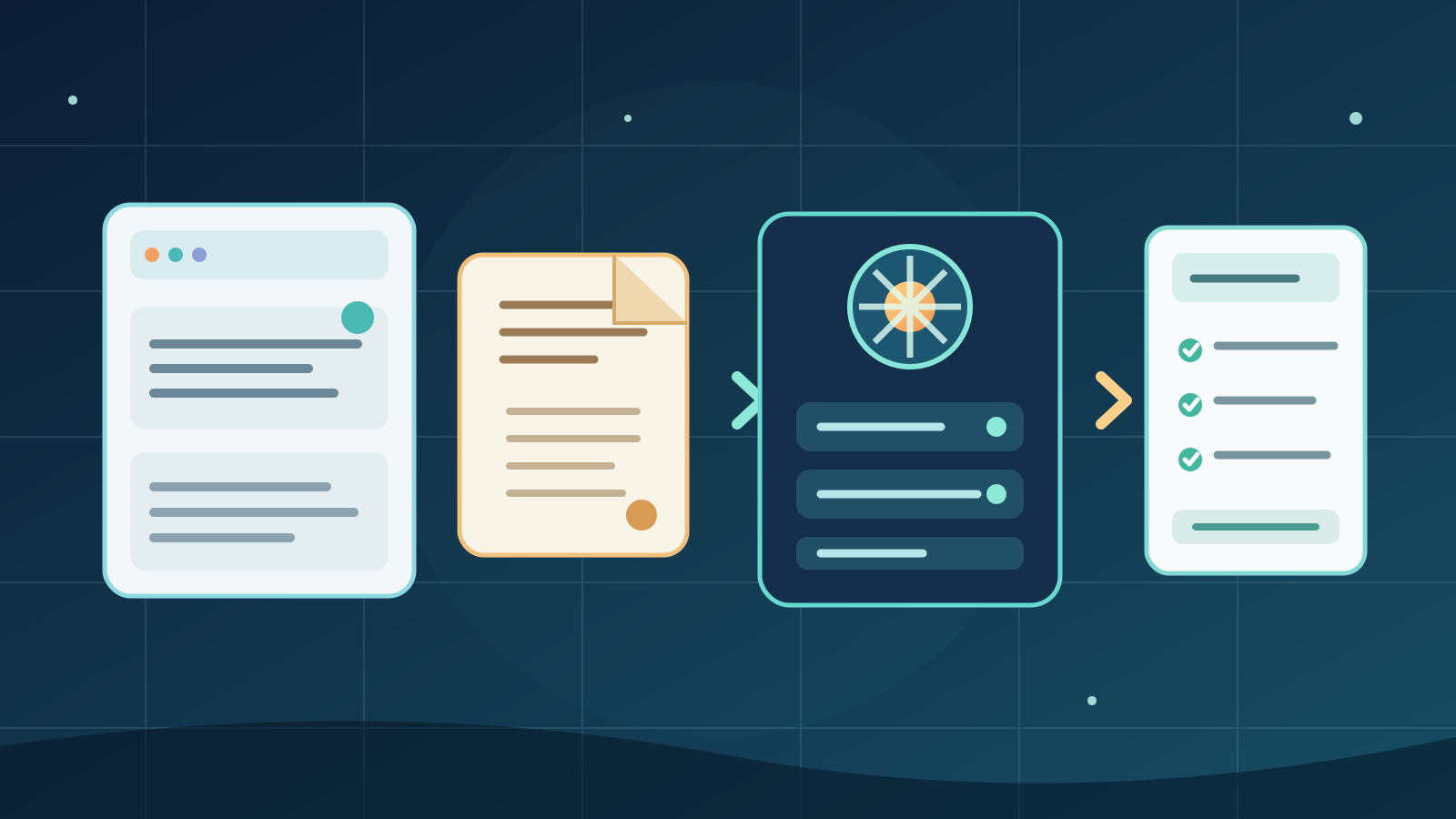
Gemini API URL Context is a built-in retrieval tool that lets a Gemini model read content from URLs you provide. Instead of pasting a long web page into a prompt, you can pass direct links to public articles, product documentation, reports, images or PDFs and ask the model to extract facts, compare documents or produce a source-grounded summary.
It is useful when an application already knows which pages matter—for example, comparing two vendors' pricing pages, summarizing several public policy documents, or answering a question from a set of API reference pages. This guide follows Google's current URL Context documentation as checked on November 12, 2026.
Important: URL Context is a retrieval aid, not a guarantee that an answer is correct. Keep the source URLs, inspect the returned citations and verify important figures against the original pages before publishing or making a decision.
What the URL Context tool does
When you include the URL Context tool in a Gemini request, the model can retrieve the content from the URLs in your prompt and use it to answer. Google documents a two-stage retrieval process: the system first checks an internal index cache and falls back to a live fetch when a page is not available in that cache.
The response can include URL citation annotations that connect portions of the generated answer to the source URLs. It also includes retrieval metadata that can help you see whether a URL was retrieved successfully or rejected.
Who should use it?
- Developers building research assistants, documentation helpers or source-grounded customer support tools.
- Analysts comparing public reports, policy documents, product specifications or pricing pages.
- Content teams synthesizing several public sources while keeping citations attached to claims.
- Product and procurement teams extracting comparable facts from vendor pages and technical PDFs.
It is less suitable for private company portals, authenticated dashboards, internal intranets or sites that block automated retrieval. Those sources need an authorized ingestion workflow rather than a public-URL fetch.
Prerequisites and access
- Create a project and Gemini API key in Google AI Studio.
- Install a Google Gen AI SDK version newer than 2.0.0. The current SDK repository documents major version 3 changes and recommends pinning below 3.0.0 to avoid unexpected upgrades; this example therefore uses the v2-compatible range. Re-test the Interactions response parsing if you migrate to v3.
- Set the API key as an environment variable named
GEMINI_API_KEYrather than hard-coding it in source code. - Choose a model listed in Google's URL Context supported-model table.
- Prepare direct, publicly accessible URLs. Check that the pages do not require sign-in and that their content is not paywalled.
The current documentation lists URL Context support for models including Gemini 4 Carbon, Gemini 4 Argon, Gemini 3.8 Flash, Gemini 3.6 Flash, Gemini 3.5 Flash-Lite, Gemini 3.1 Pro Preview, Gemini 3.1 Flash-Lite, Gemini 3 Flash Preview and Gemini 2.5 models. Preview labels in that list matter: availability and behavior can change, so check the model table before deploying.
Step 1: Install the Google Gen AI SDK
For Python, install or update the official client library in your project environment:
pip install "google-genai>=2.0.1,<3.0.0"Then export your key in the shell or configure it through your hosting provider's secret manager:
export GEMINI_API_KEY="YOUR_API_KEY"Do not commit the key to Git, place it in browser-side JavaScript or paste it into a public repository. In production, load it from a server-side environment variable or secret manager.
Step 2: Choose the URLs and define the task
Use exact page URLs rather than a site's homepage. For example, if you want to compare two software plans, pass the two pricing pages—not just the vendors' domains. URL Context retrieves the URLs you provide; it does not automatically follow every link on those pages.
Make the output structure explicit. Ask for fields such as plan name, monthly price, usage limits, renewal terms and exclusions. Tell the model to write "Not stated" when a page does not provide a value instead of filling gaps with a guess.
Step 3: Make a URL Context request
The following Python example uses the Interactions API and the currently documented gemini-3.8-flash model. Replace the example URLs with pages you are allowed to analyze.
from google import genai

client = genai.Client()  # Reads GEMINI_API_KEY from the environment

url_a = "https://example.com/pricing"
url_b = "https://docs.example.com/plans"

interaction = client.interactions.create(
    model="gemini-3.8-flash",
    input=(
        "Compare the plans on these two pages. Return a table with plan, "
        "monthly price, usage limits and exclusions. Write Not stated "
        "when a value is missing. Cite every factual claim. "
        f"Sources: {url_a} and {url_b}"
    ),
    tools=[{"type": "url_context"}],
)

for step in interaction.steps:
    if step.type == "model_output":
        for block in step.content:
            if block.type == "text":
                print(block.text)
                for annotation in block.annotations or []:
                    if annotation.type == "url_citation":
                        print("Source:", annotation.url)
The SDK example follows Google's documented request pattern: create an interaction, provide the model, prompt and url_context tool, then read model-output text and its citation annotations. Use the SDK documentation for the exact response types in the version you install.
Step 4: Inspect citations and retrieval status
Do not treat a polished paragraph as proof that every URL was read. Inspect the returned url_citation annotations and the url_context_result steps. Google documents a retrieval status of unsafe when a URL fails its safety check. Your application should record failed retrievals and avoid presenting unsupported claims as sourced facts.
- Confirm each citation points to one of the intended URLs.
- Open the cited page and check important numbers, dates and qualifications.
- Check whether a page was updated after the model retrieved it.
- Keep a clear "source unavailable" state if a URL could not be fetched.
Step 5: Combine URL Context with search when discovery is needed
URL Context is strongest when you already know which pages to inspect. If your workflow first needs to discover relevant pages, Google documents combining URL Context with Grounding with Google Search. Gemini 3 models can combine built-in tools in the same request; check the tool-combination documentation and supported-model requirements before using this pattern.
A useful workflow is to ask search to find current official documentation, then use URL Context to read the selected pages in more depth. Keep discovery and source analysis as separate stages in your application so a search result is not mistaken for a fully reviewed source.
Practical example: compare two API documentation pages
Suppose you are choosing between two payment APIs. Provide the official authentication, rate-limit and pricing URLs for each provider. Ask Gemini to produce a comparison table with:
- Authentication method and token lifetime.
- Published rate limits and any tier-specific differences.
- Transaction fees or subscription prices stated on the pages.
- Webhook retry behavior and documented error codes.
- Missing details that require confirmation from the vendor.
Then review every citation before sharing the comparison. If a vendor hides its pricing behind a login or a sales form, mark it as unavailable rather than inferring a price.
Limits, privacy and cost
| Area | Documented behavior | Practical implication |
|---|---|---|
| URL count | Up to 20 URLs per request | Split larger research jobs into batches. |
| Page size | Up to 34 MB retrieved from one URL | Large documents may need a different ingestion method. |
| Access | URLs must be publicly accessible | Login-protected, paywalled and private-network pages are not supported. |
| Content types | HTML, JSON, text, XML, CSS, JavaScript, CSV, RTF, PNG, JPEG, BMP, WebP and PDF | Check the response type before sending a URL. |
| Unsupported content | Paywalled pages, YouTube URLs, Google Workspace files, video and audio files | Use the relevant video, file or authorized data workflow instead. |
Google's pricing page lists URL Context as free of charge on the free tier and billed as input tokens at the selected model's standard rate on the paid tier. Retrieved content contributes to input-token usage, so a long PDF or several detailed pages can increase the total request cost. Check the current pricing page for model-specific rates and any plan changes.
There is also a data-use distinction: Google's Gemini API pricing page says free-tier content may be used to improve Google products, while paid-tier content is not used for that purpose under the published terms. Do not send confidential, regulated or customer data unless your organization's privacy review and the applicable terms explicitly permit it.
Limitations to plan around
- It is not a full web crawler. It reads the URLs supplied in the request, not every nested link.
- It cannot access private pages or bypass authentication, paywalls or network boundaries.
- Retrieved pages can change, and cached content may not always be the newest version. Verify time-sensitive facts at the source.
- Model-generated summaries can omit context or misinterpret tables. Keep citations visible and validate important claims.
- The Interactions API examples currently use the
v1betaREST endpoint. Pin and test your integration against the current API revision before production rollout.
Practical takeaways
- Pass direct URLs to specific public pages, not broad homepages.
- Ask for a structured result and require "Not stated" for missing facts.
- Keep the citation annotations and retrieval statuses in your application logs.
- Budget for retrieved input tokens and review free-tier data-use terms.
- Verify high-impact facts manually before publishing or taking action.
Frequently asked questions
How many URLs can Gemini URL Context read at once?
Google currently documents a maximum of 20 URLs in one request, with a 34 MB retrieval-size limit for each URL.
Can URL Context read a private Google Drive document?
No. Google lists Google Workspace files such as Docs and spreadsheets as unsupported, and the URLs must be publicly accessible. Use an authorized file or data connector for private content.
Does URL Context provide citations?
Yes. The response can include URL citation annotations that associate generated text with source URLs. Your application should extract and display those citations.
Is the URL Context tool separately billed?
Google lists it as free of charge on the free tier. On the paid tier, retrieved content is billed as input tokens at the selected model's rate. Model tokens and other enabled tools can add costs.
Can I use it to summarize YouTube videos?
Not through URL Context. Google lists YouTube URLs, video files and audio files as unsupported for this tool; use the separate video-understanding workflow where supported.