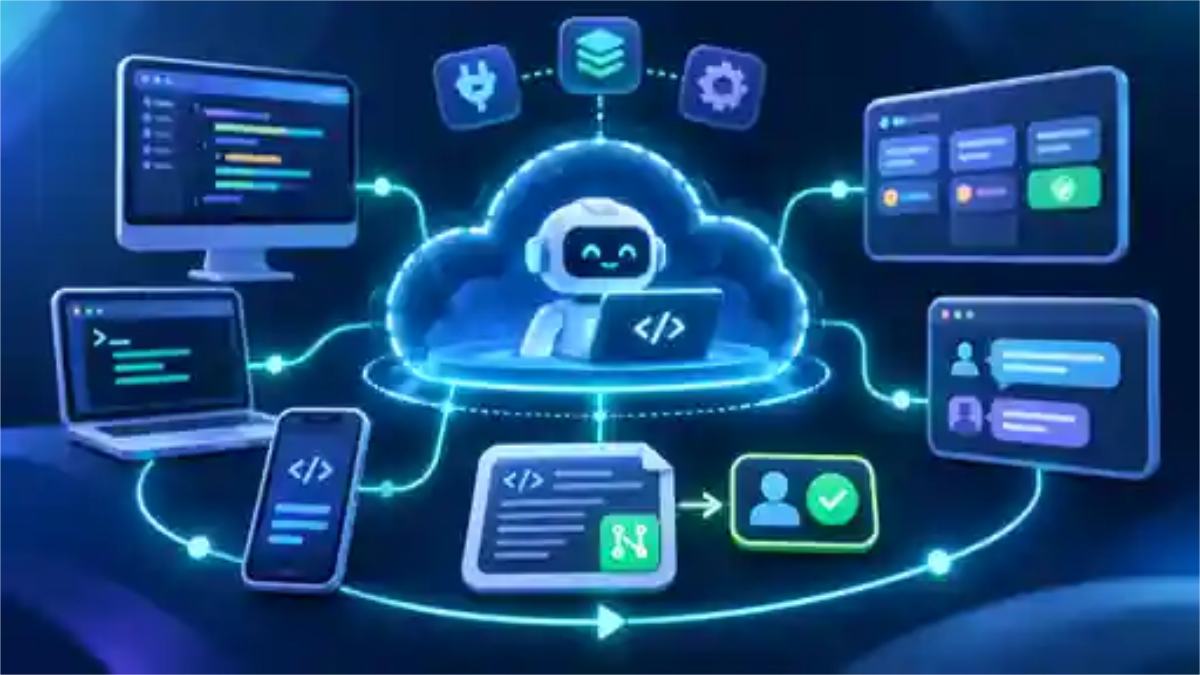
Developers often begin a task in one place and finish it somewhere else: a bug is spotted on a phone, investigated in a browser, fixed in an IDE, and reviewed in a pull request. The new GitHub Copilot in the cloud experience is designed to keep that work in one continuous session instead of forcing you to restart the conversation at every surface.
Announced on October 28, 2026, the connected experience brings together GitHub.com, GitHub Mobile, the Copilot app, VS Code, Copilot CLI, and supported Slack and Microsoft Teams workflows. By default, cloud sessions run in a GitHub-managed sandbox that is separate from your local machine. A saved snapshot lets you resume later from another supported client.
Important availability note: The new cloud experience and cloud sandboxes are generally available on paid GitHub Copilot plans, subject to rollout, organization policies, repository settings, and account permissions. Copilot Free users continue to receive the older Copilot Chat experience on GitHub.com and GitHub Mobile.
What is GitHub Copilot in the cloud?
Copilot in the cloud combines chat, repository-aware agent work, code review, and task handoff across supported clients. You can ask a question about a repository, attach an issue or pull request as context, ask Copilot to plan a change, and then delegate implementation in a cloud environment.
The key pieces are:
- Client or surface: Where you interact with Copilot, such as GitHub.com, GitHub Mobile, VS Code, the Copilot app, or CLI.
- Session: The conversation and activity for the task, including prompts, responses, tool use, and progress.
- Environment: Where the agent executes work. Options include a cloud sandbox, a GitHub Actions-based environment, or a remote custom environment.
Who benefits from connected cloud sessions?
- Individual developers: Start a small investigation on mobile and continue implementation from a desktop later.
- Engineering teams: Hand off repository tasks while keeping a shared session history and reviewable pull request.
- Maintainers: Ask Copilot to trace a bug across related repositories, draft tests, or prepare a focused change.
- Technical leads: Give the agent explicit acceptance criteria and review its plan, logs, test results, and diff before approving a change.
Before you start
Check these prerequisites before using the new experience for a real repository:
- Paid Copilot plan: The new cloud experience is available on paid Copilot plans. Copilot Free users continue to use the older Chat experience.
- Organization policy: For organization-owned repositories, an owner or administrator must allow the “Copilot in the cloud” experience. Enterprise-managed agent permissions and MCP allowlists continue to apply.
- Repository access: You need write access for Copilot to make changes. Without it, the session is read-only.
- Single sign-on: Organization members must satisfy the organization's SSO requirements to access session data for its repositories.
- Billing awareness: Cloud sandbox billing begins in November 2026. Check the account's included compute allowance, payment settings, and budgets before running long sessions.
Step 1: Open Copilot and choose the repository context
- Open GitHub Copilot on GitHub.com, or open the Agents tab or Copilot panel inside a repository.
- Start a new session. You can also open Copilot from an issue, pull request, file, or repository so that the current page is added as context.
- Select the repository and branch that should be used for the task. If the work spans repositories, choose repositories owned by the same personal account or organization.
- Check that you are using the new cloud experience and that the environment selector is set to Cloud if you want a resumable cloud sandbox.
Step 2: Write a bounded task request
A useful agent request describes the outcome, the files or behavior in scope, how success will be tested, and what the agent must not do. Avoid a vague instruction such as “fix the app.” Give Copilot a narrow problem and observable acceptance criteria.
Example task prompt
Investigate why the checkout integration tests intermittently fail on the feature branch. Identify the likely cause, make the smallest safe code change, add or update a regression test, and run the relevant test suite. Do not change public APIs, production secrets, payment settings, or deployment configuration. Do not merge or deploy. Summarize the root cause, files changed, test commands and results, and any remaining uncertainty. Ask before taking an action that changes an external system.
This prompt gives the agent a defined job while keeping consequential decisions with the developer. For larger tasks, ask Copilot to propose a plan first, review the plan, and then authorize implementation.
Step 3: Add only the context the task needs
On the web, use the + menu or @ mentions to attach repositories, Copilot Spaces, or files. Starting from an issue, pull request, file, or repository automatically adds that page as context. GitHub Mobile also supports voice prompts and attaching images or files.
For connected services, configure supported GitHub connectors or personal Model Context Protocol (MCP) servers. Cloud sessions can use tools such as Bash and the GitHub CLI, as well as configured connectors, skills, and custom instructions. For organization-owned systems, follow your administrator's approved connector and secret-management process.
- Attach the failing test log rather than the entire production log archive.
- Point to the issue or pull request that defines the expected behavior.
- Provide the relevant test command and a short explanation of the repository's conventions.
- Do not paste passwords, API keys, private customer data, or other secrets into a prompt.
Step 4: Choose the right execution environment
The new experience offers three environment choices. Pick the one that matches the task instead of assuming every session should run in the same place.
| Environment | Best for | Important limitation |
|---|---|---|
| Cloud sandbox | Resumable sessions, cross-client handoff, and work that does not need custom runner setup. | Does not support custom compute, GitHub Actions-specific setup steps, or self-hosted runners. |
| GitHub Actions | Repository-specific setup, custom compute, network configuration, or self-hosted runners. | Sessions are limited to one repository context and have a 59-minute maximum execution time. |
| Remote | A custom environment on your own computer or VM. | Requires you to register and maintain that environment. |
Cloud sandboxes can work across multiple repositories that share the same owner. If your workflow depends on copilot-setup-steps.yml, Actions-based self-hosted runners, or specialized network and compute configuration, choose the GitHub Actions environment instead.
Step 5: Set permissions and supervise the agent
Copilot lets you choose how much autonomy the agent receives. It asks for approval before tool calls that require it, but your team should still define what the agent is allowed to read, edit, and execute.
- Start with the least access needed for the task.
- Keep approval requirements for external writes, account changes, payments, deployments, or actions that affect customers.
- Use repository and organization policies to restrict tools and MCP servers.
- Watch the session log to understand which tools were used and which files were changed.
- Stop or redirect the agent if it moves outside the requested scope.
Step 6: Review the result before creating a pull request
When the agent finishes, inspect its summary and the actual diff. Ask it to explain any surprising change, rerun a failing test, or split unrelated modifications into a separate task. You can request a pull request from the session, but the pull request is a review point—not proof that the change is correct.
- Confirm the change solves the original issue and does not introduce unrelated refactoring.
- Run the relevant tests, linters, type checks, and security checks.
- Inspect dependencies, permissions, authentication, input validation, and error handling.
- Review the session log and verify that no secrets or unintended external data were accessed.
- Use your normal code-review and branch-protection process before merging.
Step 7: Resume the same session on another device
Open the same Copilot session from the session list in a supported client. You can start on GitHub Mobile, continue on GitHub.com, and finish in the Copilot app, VS Code, or CLI. Cloud sandboxes save a snapshot when they shut down, allowing the session to resume later without depending on your laptop staying online.
This is different from steering a local CLI session remotely: a local session continues to run on the original computer, which must remain online. Choose a cloud sandbox when you want the agent's execution environment to be hosted by GitHub.
Cloud sandbox billing: what to budget for in November 2026
GitHub says billing for cloud sandbox usage begins in November 2026. Cloud sandbox usage has three meters:
- Compute: Time while the sandbox is running.
- Memory: Allocated memory while the sandbox is running.
- Storage: Snapshot storage while a stopped session is retained for later resumption.
Cloud sandbox compute and memory draw from the same monthly included compute allowance as eligible GitHub-hosted Actions runners. This allowance is separate from GitHub Copilot AI credits. Once included compute is consumed, additional usage is billed to the account. GitHub's published sandbox rates at the time of writing are:
| Meter | Published rate |
|---|---|
| Compute | $0.000024 per compute second |
| Memory | $0.000003 per GiB-second |
| Snapshot storage | $0.005 per GiB-month |
Storage is separately metered; the billing documentation lists compute and memory as the usage types that draw from the shared included compute allowance. Set product-level or SKU-level budgets and alerts if you need a hard spending control. The account that owns the sandbox is billed for the session.
Limitations and safety considerations
- Plan and rollout: The new experience is for paid Copilot plans and can be affected by organization or enterprise policy.
- Repository permissions: Without write access, the session is read-only. Organization sessions also require the relevant SSO access.
- Environment compatibility: Cloud sandboxes do not support custom compute, Actions-specific setup steps, or self-hosted runners.
- Repository scope: Cross-repository work is supported within one owner; it is not a way to cross arbitrary organizations.
- Output quality: Copilot can produce incorrect or insecure code. Human review and testing remain necessary.
- External actions: An agent should not be given broad access to production systems, payment tools, or customer data simply because a connector is available.
Frequently asked questions
Is GitHub Copilot in the cloud available on the Free plan?
No. The connected cloud experience is available on paid Copilot plans. Copilot Free users continue to use the older Copilot Chat experience on GitHub.com and GitHub Mobile.
Can I start a task on my phone and finish it in VS Code?
Yes. Cloud sessions preserve their conversation and activity across supported surfaces, including GitHub Mobile, GitHub.com, the Copilot app, VS Code, and Copilot CLI.
Does a cloud sandbox use my Copilot AI credits?
GitHub documents cloud sandbox compute and memory as drawing from the monthly shared compute allowance, separate from AI credits. Snapshot storage is also metered. Check the billing page for current rates and budgets.
Can Copilot work across multiple repositories?
Cloud sandbox sessions can span multiple repositories owned by the same personal account or organization. GitHub Actions-based sessions are limited to the repository selected for the task.
Will Copilot automatically merge its pull request?
Creating a pull request does not replace your team's review and branch-protection process. Inspect the diff, run checks, and follow your normal approval rules before merging.
Official documentation and further reading
- GitHub Changelog: Work from anywhere with a new, connected Copilot cloud experience (October 28, 2026)
- GitHub Docs: Copilot on GitHub.com and GitHub Mobile
- GitHub Docs: Billing for cloud and local sandboxes for GitHub Copilot
Key takeaway
GitHub Copilot's connected cloud experience makes it easier to carry one coding task between devices while the agent works in a separate cloud environment. Start with a narrow task, attach only relevant context, choose the right execution environment, keep permissions limited, and review every proposed change. Because cloud sandbox billing starts in November 2026, teams should also monitor compute, memory, snapshot storage, and spending budgets before making long-running sessions routine.