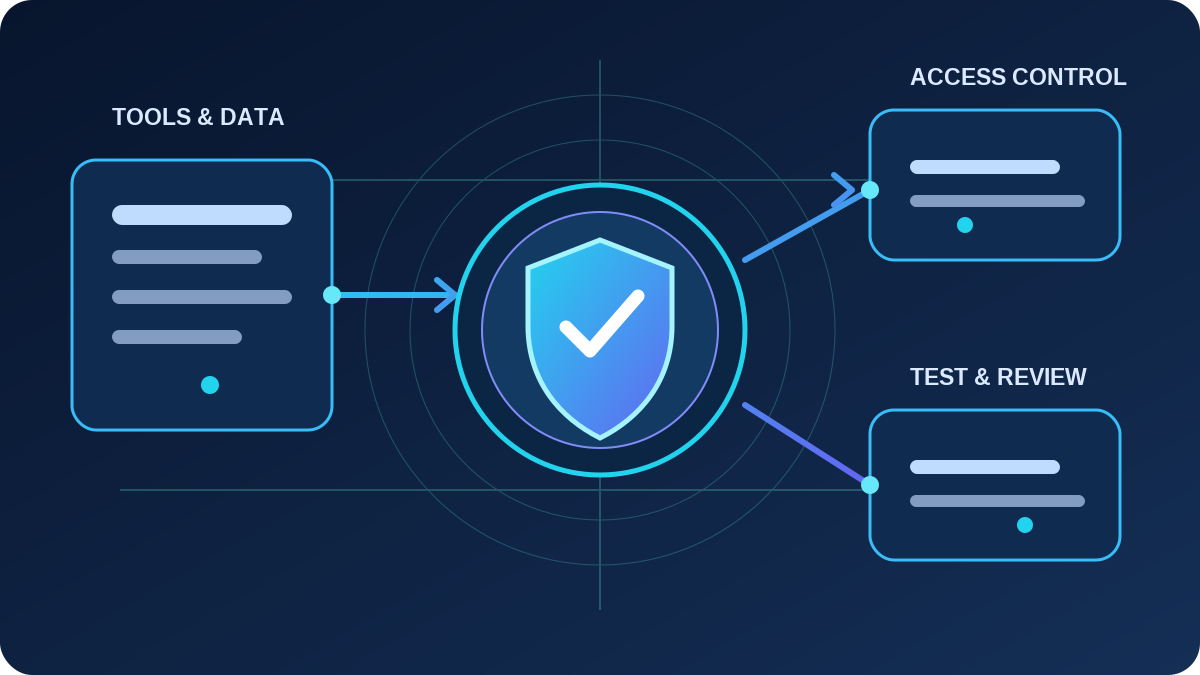
Security teams often repeat the same investigation steps: collect alert context, query approved tools, summarize evidence, and prepare a handoff for an analyst. Microsoft Security Copilot custom agents let an organization package a defined workflow into an agent with instructions, inputs, tools and permissions. The aim is not to remove the analyst from the loop; it is to make repeatable work more consistent and easier to inspect.
What is a Security Copilot custom agent?
A custom agent is an AI-driven workflow built for a specific security or IT task. In Microsoft's agent builder, you define the agent's purpose, instructions, required inputs, tools and (where applicable) automation triggers and permissions. The builder can also show an autogenerated YAML representation, which helps teams review or version the configuration.
For example, a vulnerability-triage agent could accept a CVE identifier and affected asset, retrieve information through approved tools, compare the evidence with the organization's inventory, and return a structured analyst brief. It should not silently change firewall rules, disable accounts or deploy patches unless those actions are explicitly part of an approved workflow.
Who benefits?
- Security operations teams: standardize repetitive alert enrichment and incident summaries.
- Threat-intelligence analysts: assemble briefings from approved internal and external sources.
- Identity and IT administrators: investigate policy gaps and prepare evidence-backed recommendations.
- Security engineers: build, test and maintain reusable workflows with defined tools and inputs.
Prerequisites and availability
You need access to a Microsoft Security Copilot workspace and the appropriate role to build or manage agents. Security Copilot uses Microsoft Entra ID for authentication and requires an Azure subscription. Teams that are not receiving the included Microsoft 365 E5/E7 benefit need to provision Security Compute Units (SCUs). E5/E7 eligibility does not guarantee immediate access: Microsoft says the benefit is enabled through a tenant rollout, so check whether your tenant has been provisioned.
Availability note: Microsoft's custom-agent builder documentation currently carries a prerelease notice. The interface and capabilities may change before commercial release. Agent availability can also depend on workspace configuration, administrator consent, required plugins and tenant policy.
Some partner-built agents that access Microsoft product data require a Global Administrator to approve the requested permissions. That is a consent step for the relevant integration—not a reason to run every agent as a Global Administrator. Microsoft recommends using the least-privileged identity that can complete the task.
Step-by-step: build a custom security agent
1. Choose one narrow, measurable task
Start with a task that has a clear input and a reviewable output. A good first project is an incident-context summarizer. Define the result as a short report containing the incident identifier, affected assets, timeline, evidence links, unknowns and recommended next checks. Avoid broad instructions such as “secure my environment.”
2. Open Agent Builder
- Sign in to your Microsoft Security Copilot workspace.
- Open the Build area and choose Start from scratch.
- Select Get started to open the agent configuration page.
- Use the Build tab to configure the agent and the Test tab to validate its behavior.
In the newer agent-first experience, navigation can differ by rollout. If you do not see Build or the agent library, ask your workspace administrator to confirm your role and tenant availability.
3. Define the agent's identity and goal
Give the agent a specific name and description. For example:
Name: Incident Context Briefing
Description: Prepare an evidence-linked first-look summary for a security analyst.
Goal: Enrich one incident using only the approved tools and data sources configured for this agent.
Keep the scope narrow enough that an analyst can tell whether the agent did the right job.
4. Write explicit instructions
Instructions should define the sequence, evidence standard, output format and actions the agent must not take. A starter instruction might be:
1. Read the supplied incident ID and time range.
2. Retrieve related alerts and asset context using the configured tools.
3. Separate confirmed observations from hypotheses.
4. Include a source or record reference for every material finding.
5. List missing evidence and questions for the analyst.
6. Recommend next checks, but do not change production systems,
   close incidents, disable accounts or isolate devices.
Explicitly require the agent to say when a tool returns no data. This reduces the risk of a plausible-sounding summary being mistaken for verified telemetry.
5. Add inputs and configure tools
Add only the inputs the workflow needs, such as an incident ID, severity or time window. If a value has a fixed set of allowed options, state that in its description—for example, Severity must be high, medium or low.
In the Tools section, select the plugins or custom tools needed for the task. A tool is the agent's route to data or an action; it is also a permission boundary. Review what each tool can read or change, and remove anything that is not essential.
6. Configure identity, triggers and permissions
For agents that run with an identity, prefer a dedicated agent identity where supported. Assign the minimum roles and data access needed. If automation is enabled, document which event starts the agent and which conditions must be met. Keep write-capable actions behind an explicit human approval step until the workflow has been tested and approved.
7. Test normal, missing-data and adversarial cases
- Run a known incident with complete data and compare the output with an analyst's expected result.
- Test an unknown incident ID and confirm the agent reports that the record was not found.
- Test incomplete or conflicting evidence and check that uncertainty is clearly labelled.
- Try an instruction embedded in an alert or external artifact that asks the agent to ignore its rules. Confirm it treats that text as untrusted data.
- Inspect tool calls, inputs and outputs in the activity view, then refine instructions and repeat.
8. Publish with a controlled audience
When the tests are satisfactory, publish the agent at the appropriate user or workspace scope. Start with a small analyst group, document its purpose and limitations, and monitor feedback and usage. Expand access only after the team has reviewed the agent's outputs and permission model.
Billing: understand Security Compute Units
Security Copilot consumption is measured in SCUs. Provisioned SCUs provide reserved capacity and are billed based on the provisioned amount; overage SCUs provide additional on-demand capacity and are billed when used, subject to the configured limit. Agent activity consumes the same product capacity model as other Security Copilot workloads.
Microsoft 365 E5/E7 customers may receive included monthly SCU capacity after their tenant is enabled. Microsoft's published pricing page describes an allowance of 400 SCUs per month for every 1,000 eligible user licenses, up to 10,000 SCUs per month. Confirm current eligibility, rollout status, regional pricing and capacity in your own tenant before budgeting; usage varies by workload.
Limitations and practical safeguards
- Agent output can be incomplete or incorrect. Verify material findings against source records.
- Tool availability and permissions vary by tenant, role, plugin and product configuration.
- Preview features can change, and prerelease documentation is not a guarantee of final behavior.
- Do not expose secrets or broad administrative credentials in agent instructions.
- Keep destructive or high-impact actions behind human review and an auditable approval path.
- Monitor SCU usage and pause agents that are no longer needed.
Frequently asked questions
Do I need to know YAML to build a custom agent?
No. The form-based builder supports configuring an agent through its interface. It can also display the generated YAML for review or further development.
Is the custom agent builder generally available?
Microsoft's developer documentation currently includes a prerelease notice. Availability and the exact interface can vary, so confirm the status shown in your tenant.
Does Microsoft 365 E5 automatically enable Security Copilot?
Not necessarily. E5/E7 customers may be eligible for included capacity, but Microsoft says tenant provisioning is phased. An administrator should verify that the benefit is active.
Can an agent make changes without asking an analyst?
Automation and tool permissions can allow agents to take actions, but the organization defines the scope. For a new workflow, begin with read-only tools and require human approval for changes that affect users, devices or production systems.
Sources and further reading
- Microsoft Learn: Build an agent from scratch using Agent Builder
- Microsoft Learn: Security Copilot agents overview
- Microsoft Learn: Set up and manage Security Copilot agents
- Microsoft Learn: Get started with Security Copilot
- Microsoft Learn: Security Copilot FAQ and billing
- Microsoft: Security Copilot pricing and SCUs